Free Online SVG Converter
Convert PNG and JPG to SVG.
Drop or Paste your image here
or
Or try one of these examples:
How to Convert Images to Vectors
A simple workflow to turn images into scalable vector graphics.
1. Transform Image into SVG
Start by uploading your JPG or PNG file. For simple illustrations, a resolution of 1024px or smaller works well. However, if your image has intricate details, upscaling it to 2K or 4K before converting will greatly improve the results. Note that transparent backgrounds will turn white during conversion, but you can easily remove them later using the SVG editor.
2. Define Your Custom Color Palette
Once the image is uploaded, a color palette is automatically generated. You can refine this by using the color picker to select new shades directly from the image, or by adding Hex codes manually using the plus (+) button at the end of the list. Unwanted colors can be removed simply by clicking the 'X' button next to them.
3. Stacked vs. Cutout Mode
After defining your palette, choose between Stacked or Cutout mode. In Stacked mode, each color is converted into a solid shape, with layers stacked on top of one another. In Cutout mode, the shapes fit together like a puzzle, cutting the colors out from each other to prevent overlapping.
4. Selecting Noise Level
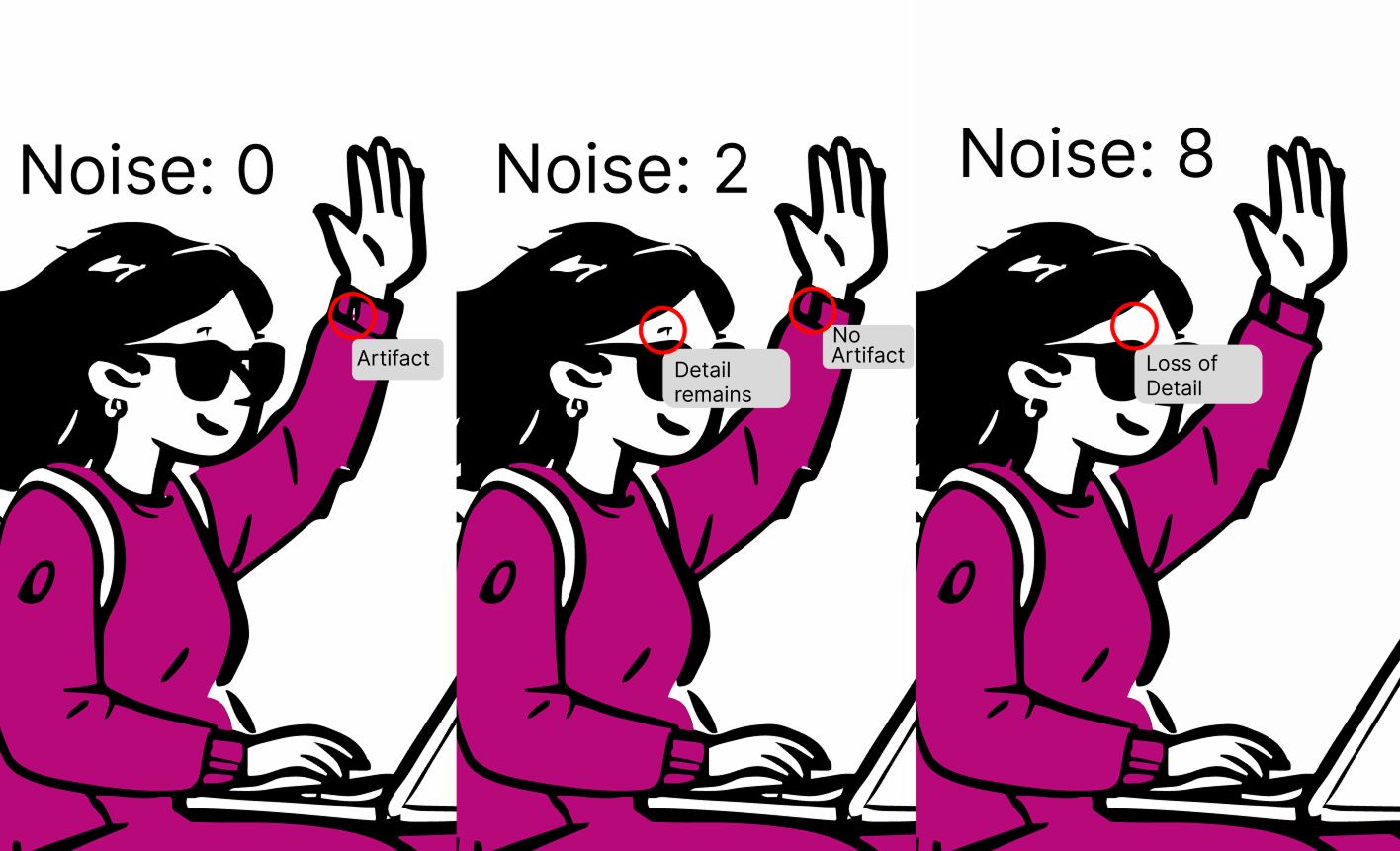
Sometimes, small specks or artifacts can appear in the vector, especially near borders. To remove these, simply increase the noise level for a cleaner SVG. Conversely, if critical details are being lost, decreasing the noise level will capture finer elements. It may take a few tries to find the balance, but a setting of 2 is usually the sweet spot.
5. Edit Colors & Background Transparency
After the conversion is complete, you can edit the SVG's colors and transparency. Click on any section of the preview to pick a new color or hide the layer completely to make it transparent. You can also toggle the 'Match All' option to simultaneously apply changes to every layer that shares the same color.
FAQ
Is my data safe?▼
Yes. We process images temporarily and discard them immediately after conversion. Nothing is stored.
Can I convert photos?▼
Not recommended. This tool works best for flat graphics, logos, and icons. Photos result in very large, complex files.
Can I remove background?▼
Yes you can make the background transparent by editing the converted SVG, See the 5. Edit Colors & Background Transparency step above.
Is it free?▼
Yes, completely free. No signups, no credit cards.
My Other Projects